Editor
Editing and formatting
A ticket is text, headings, a few emphasised words and links. The editor has exactly those, so what you write looks the same in Markdown, in HTML and in your tracker.
Typing, selecting, undoing
Type anywhere. The host and the operator type straight into the text, and everyone in the document sees the change at once; anyone else is in Suggesting mode, where what they type becomes a suggestion for the operator (see Review changes). The header shows how much of the text is human, AI, or AI text nobody has read yet. Mod+Z undoes, Mod+Shift+Z redoes; Undo and Redo on Tools do the same.
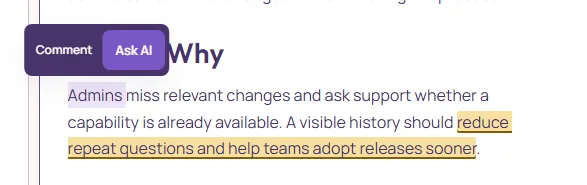
Select text with the mouse or with Shift and the arrow keys. A selection shows the selection tools above it: Comment and Ask AI.
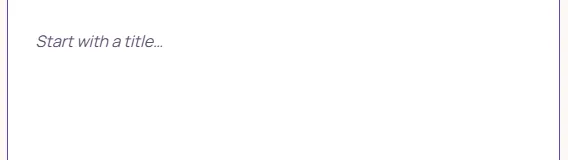
An empty document shows Start with a title… until the first character; the line is a hint, not text, and never reaches the export.
Text styles
The Text style menu on Tools sets the block the cursor is in: Normal for a paragraph, Heading 1, 2, 3 for the outline. The Outline menu on Tools has the same three headings as Section, Subsection and Part. From the keyboard: Mod+Alt+1, Mod+Alt+2, Mod+Alt+3 for the headings and Mod+Alt+0 back to a paragraph.
A heading is the ticket’s outline. Exports keep the levels, and the AI reads them to know which section it is looking at, so use them for structure rather than for size.
Bold, italic, strikethrough, inline code
Mod+B, Mod+I, Mod+Shift+X, Mod+E, or the four buttons in the Font group. Each one toggles on the selection, or on what you type next when nothing is selected. Inline code is for identifiers and values (userId, 429); it keeps its spacing and is never spell-checked away.
Markdown shortcuts work while typing: **bold**, _italic_, `code`, and # followed by a space at the start of a line for a heading, - or 1. for a list, > for a quote.
Links
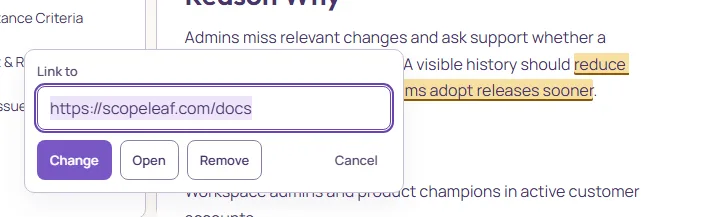
Select the words, press Mod+K or the Link button, type the address and press Enter. scopeleaf.com/pricing becomes https://scopeleaf.com/pricing; an email address becomes a mail link. Only web and email addresses are accepted; anything else is refused with a sentence and nothing changes.
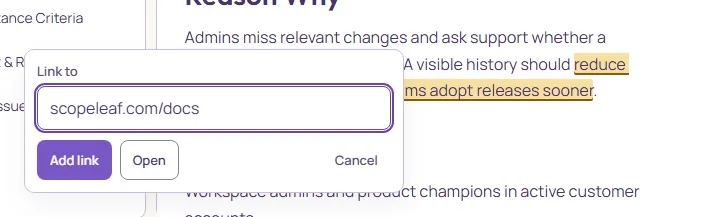
A link in the document is underlined in the accent colour. Clicking it puts the cursor there and shows the address with Open, Edit and Remove; Open follows it in a new tab, and Mod+click opens it at once. With the cursor in a link, Mod+K opens the sheet with Change, Open and Remove.
A typed address stays plain text until you link it, so a URL in a note is not turned into a link behind your back. A pasted address that is already a link is kept, if it is a web or email address.
Blockquote and code block
Blockquote (Mod+Shift+B, or Quote in the Insert menu on Tools) sets a block apart as a note or a quotation. Code block (Mod+Alt+C, or in the same menu) holds a snippet, a log line or a payload with its spacing intact; inside it, Enter adds a line and formatting keys do nothing. Shift+Enter in a paragraph breaks the line without starting a new block.
What the editor does not have, and why
No underline, no colours, no font sizes, no images. A ticket travels as Markdown, to a tracker, to a chat, to the AI, and Markdown has no spelling for any of those; what cannot survive the trip is not offered, so what you see is what everyone gets. Emphasis is bold or italic; structure is headings, lists and tables; a picture goes into shared materials with a link from the text.
Documents written before 2026-09-23 may carry underlined words from an earlier version of the editor. The words are kept and shown as plain text.