Editor
Review changes: suggestions and comments
Nothing the AI or a colleague proposes changes the document by itself. Every proposal is a row in Review changes, and the host or the operator decides it.
A proposed change
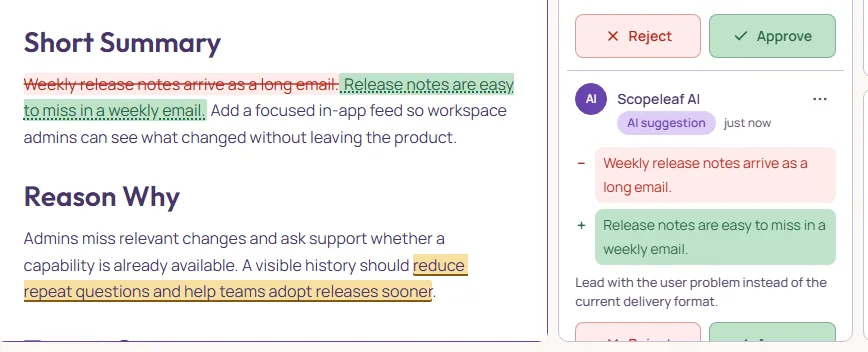
Each row is signed by the person it comes from: the colleague who commented, or whoever asked the AI, with an AI suggestion tag. Under the name, a − line shows what leaves and a + line what arrives, then why. The same change is drawn in the document, so you read it in place. Approve applies it for everyone and marks the new text as reviewed; Reject removes it. Either way the row leaves the list and the decision goes into the activity log.
Who decides
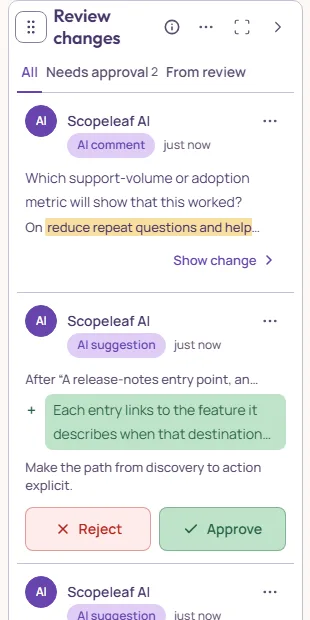
The host, or the operator they choose, decides: they approve and reject proposals, edit the wording of one from the interview, and resolve comments. That holds for every proposal, whoever asked the AI for it. Everyone else sees the same rows, with Waiting for the host or the operator where Approve and Reject would be, comments and replies, and can withdraw a comment of their own. The i beside the panel’s title sums this up.
Only the host and the operator type straight into the text; each burst of their typing is listed in the activity log under Edits, and Undo takes it back. Everyone else is in Suggesting mode, named above the document: what they type or delete is drawn in place, struck in red and new in green, with their name on it, and after a short pause it becomes a row here for the host or the operator to approve or reject. Typing on at the same place, even after a pause, adds to that same row. Enter at the end of a paragraph or a list item suggests a new line after it, and typing in an empty section suggests its first text. Formatting, tables and joining paragraphs stay with the operator: select the text and comment instead. While the caret is still there, Mod+Z takes the change back piece by piece; after that, it withdraws the whole suggestion, and Mod+Shift+Z sends it again.
When two proposals change the same text and one is approved, the other goes out of date and leaves the list for everyone, and the activity log says so.
Approving or rejecting is on the decider’s Undo, in order with their typing: Mod+Z puts the text back as it was and the row back in the list, for everyone, and Mod+Shift+Z decides it again. A tidy-up section decided at once is undone at once. When someone has written inside the approved text since, Undo leaves it as it is and says so: change it by hand. Undo reaches the last 20 things you did, typing and decisions together.
Walking through many
For the host and the operator, every row has its own Approve and Reject. The tabs over the list show every row, only the proposals that need approval, or only those from the interview. With two or more proposals in the tab, Approve all and their count sit under the tabs. The three dots in the panel’s header hold Approve all and Reject all too, and Show before & after, which switches the inline drawing off when you want to read the current text alone.
The proposals from one request to AI are listed together, under what you asked and how many changes it made. The request’s Approve all and Reject all decide them in one step, and each one still has its own Approve and Reject.
- Click a row
- Scrolls to its passage.
- Click a highlighted passage
- Brings its row forward.
- The row’s three dots
- Show in document; Reply on a comment, and Withdraw on your own comment or suggestion; for the host and the operator, Edit wording on a proposal from the interview and Resolve on a comment.
- Approve all
- Host and operator: applies every proposal the open tab shows, top to bottom. Comments stay open.
- Reject all
- Host and operator: removes every proposal the open tab shows. Comments stay open.
- A request’s Approve all
- Host and operator: applies that request’s proposals together, as one line in Activity. If one of them no longer matches the text, none is applied and that one is marked out of date.
Comments
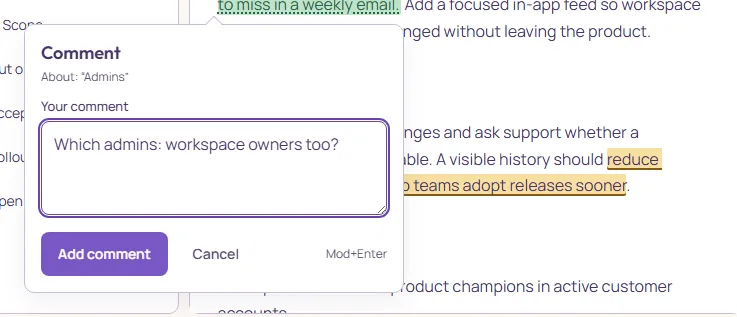
Select a passage and pick Comment from the selection tools, press Mod+Alt+M, or use the comment button in the document’s margin. With nothing selected, Mod+Alt+M comments on the paragraph the cursor is in. The comment becomes a row: Show change takes you to its passage and highlights it, and from the row’s three dots anyone can Reply or withdraw a comment of their own, and the host or the operator closes the conversation with Resolve.
Who wrote what, and endorsing
Every span remembers whether a person or the AI wrote it, and whether a person has read it since. The header shows the three shares: human, AI, and AI text nobody has reviewed. Unreviewed AI text is shaded in the document.
Approving a suggestion marks its text reviewed, and it reads as ordinary text. For AI text nobody has reviewed yet, click inside it and press Mark as reviewed on the small bar above it, or Mod+Shift+E. Editing inside AI text marks it reviewed as well. Reviewed text still counts as AI-written; the header counts unreviewed AI text until someone has marked it reviewed or edited it; how the review ends is under Review and ready.
The Activity panel
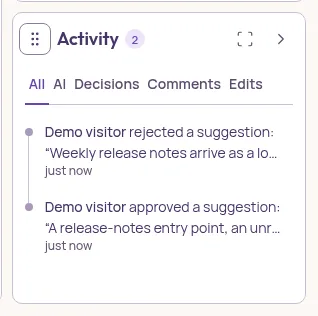
The log records joins and leaves, every suggestion, and every decision with who made it. Mod+Shift+A shows and hides the panel, as its header does; folded compact, it shows the counts. Scopeleaf AI stands above it in the same column with its own controls, so hiding Activity leaves the AI where it is. Below a wide screen each opens over the document as a drawer, one at a time, that Escape closes.
The Focus switch on the document header hides Sections, Review changes, Scopeleaf AI and Activity together and the document takes the width. Switch it off, or press Escape, and the panels come back as they were.