Getting started
Templates
A template is the outline of the ticket: the headings a new document starts with. Pick the one that matches the work, or make your team's own; nothing in a document is locked, so any section can still be edited or removed.
Choosing one
New document on Home, or Templates in the app bar, opens Choose a template. The tabs file the templates by the kind of work, Stories, Enablers, Quality, Architecture, Discovery and Planning; My templates holds the ones you made, and the search reads template names and their sections. The panel beside the list shows the selected template's sections; give the document a title there and choose Use template. Opened from a project, the new document is filed in that project.
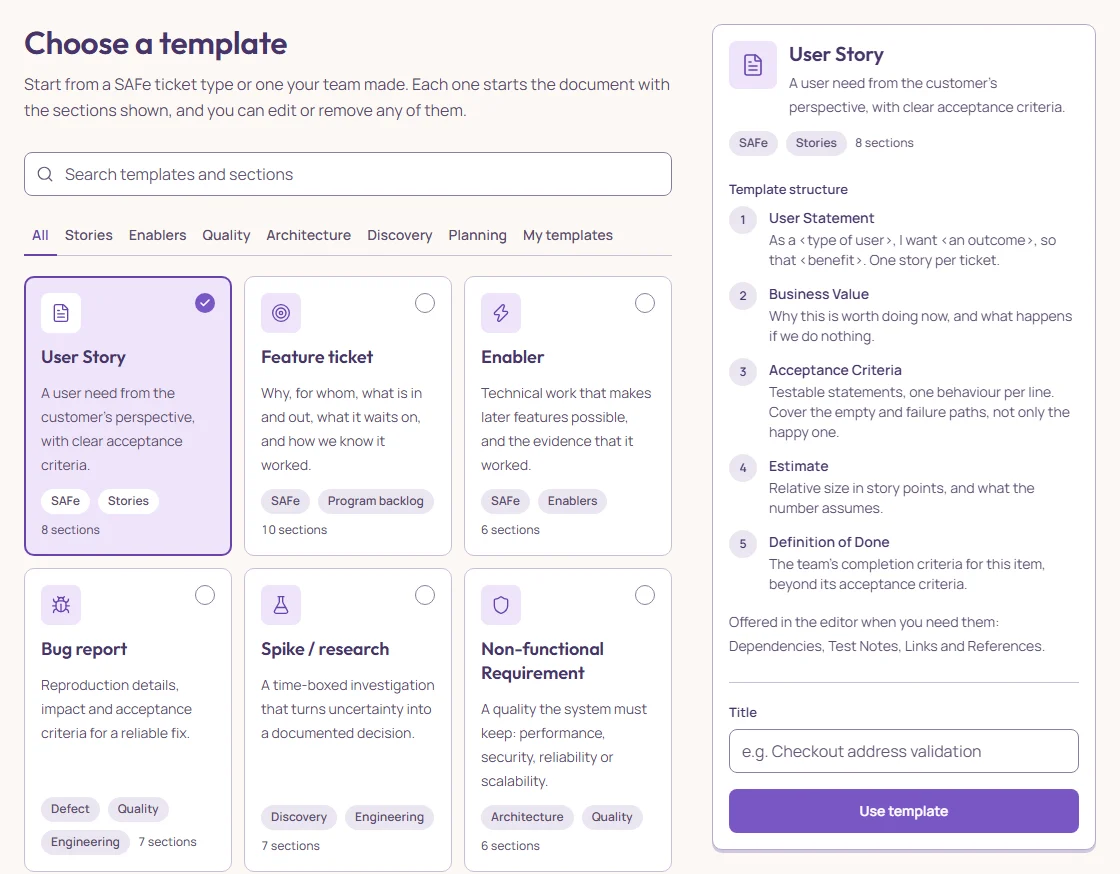
- User Story
- A user need from the customer's perspective, with clear acceptance criteria. Product Owners, the team backlog.
- Feature ticket
- Why, for whom, what is in and out, what it waits on, and how we know it worked. Product Owners, PMs, stakeholders.
- Dev story (agent-ready)
- Problem, solution, user stories and implementation decisions a dev team and its coding agents can build from.
- Lean ticket
- Title plus acceptance criteria. Enough for a small, well-understood change.
- Enabler
- Technical work that makes later features possible, and the evidence that it worked. Architects, platform teams.
- Bug report
- Reproduction details, impact and acceptance criteria for a reliable fix. Support, QA, developers.
- Spike / research
- A time-boxed investigation that turns uncertainty into a documented decision.
- Non-functional Requirement
- A quality the system must keep: performance, security, reliability or scalability.
- Technical Debt
- Known technical debt, what it costs, and the plan to pay it down.
- PI Planning Note
- The team's commitments, dependencies and risks from PI planning.
- Team Improvement
- One problem from the retrospective and the actions that address it.
- Blank
- An empty page. Add headings from the Outline menu on Tools as you go.
A template of your own
Create custom template asks three things. What are you creating? picks the work item, which sets the document's type and the sections it starts with. Name it is the name you will look for under My templates. Choose and order the sections holds two lists: the sections in your template and a library of the rest. Drag a section from the library into the template, or use its + button; drag a row by its handle, or use its arrows, to reorder it; drag it back to the library, or use its × button, to take it out. The keyboard does all of it, and each move is read out.
Save & use template returns to Choose a template with yours selected and the title field ready; Save template keeps you on the page. A custom template is yours alone: select it under My templates to edit or delete it. Documents already made from it keep their sections.
The title suggests a template
As you type the title, Scopeleaf reads it. When it reads like an investigation (“spike”, “research”, “evaluate”, “proof of concept”, “find out whether…”), the panel suggests Spike / research with a one-sentence reason, a Use Spike button, and a Keep … button that dismisses the suggestion and leaves your choice. Only that one suggestion is shown: the other shapes were not precise enough to be worth interrupting you.
The first screen and the written examples
The first time you sign in, Home opens with a short tour of where things are. To explore a complete ticket first, open Choose a template and pick Open a fully written example: a complete Feature ticket you can edit.
Why the sections matter later
The headings are how the rest of the product knows where it is. The AI reads them to place a suggestion in the right section and to ask sharper questions (Giving the AI context); the interview’s first questions come from what the sections leave open (Before the interview); the export keeps them as Markdown headings.
A section you do not need is better deleted than left empty: an empty heading is a question the AI will ask about.