Editor
Tools and panels
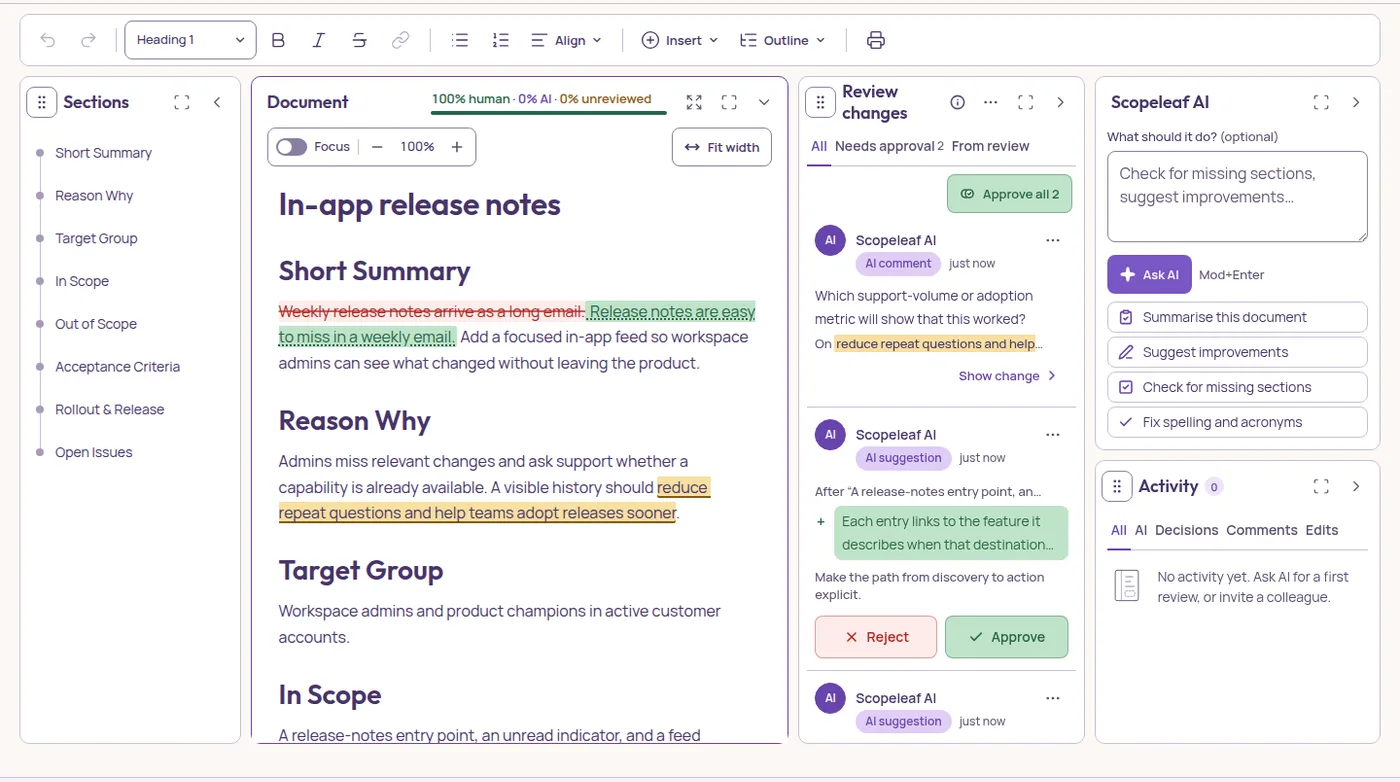
The document sits in the middle and everything around it is a panel you can fold or hide. Tools above it holds every tool in one row; the More menu in the header holds what concerns the document.
The editor at a glance
To the left of the document, Sections is its outline: press a section and the document scrolls to its heading, with the cursor in it. To the right, Review changes lists every AI proposal and comment, the newest on top; beside it Scopeleaf AI takes an instruction typed right there, and under it Activity lists what happened. Scopeleaf AI and Activity are two panels in one column: hiding one leaves the other where it is. Above them, the Tools strip holds the editing tools and is always there. Every panel is open when a document starts, Review changes too: with nothing to review it says so. Every panel has the same two controls in its header: the first folds it to a compact summary, the second hides it. A hidden panel leaves its icon in a rail at the edge of the page; press it to bring the panel back. The panels keep their proportions of the window at any width.
- Compact
- Folds the panel: Sections becomes a rail with an icon per section, Review changes and Activity a card of counts, Scopeleaf AI its icon. Press the icon at the top of the folded panel to open it again.
- Hide
- Takes the panel off the page. Its icon waits in the rail at that edge, with the count of what is inside.
- Focus
- The switch on the Document panel hides Sections, Review changes, Scopeleaf AI and Activity at once, and Tools with them. Switch it off, or press Escape, and they come back as they were.
The Document panel
The document is a panel too. Its header carries who wrote what (human, AI, and AI text nobody has read yet), Wide workspace, Fullscreen, and a chevron that folds the row of view options under it. Wide workspace is an experiment for very wide screens: it spreads the document, Sections and Activity as windows you can move, park at an edge and bring back; the same button returns to the usual layout.

- Focus
- Hides the three panels and Tools; the document takes the width.
- Zoom
- Scales the document’s type from 80% to 150%, in steps. The percentage returns to 100%. Tools and the panels keep their size.
- Fit width
- The document fills its panel instead of keeping its reading measure.
- Fullscreen
- In the panel’s header: the page on the whole screen. Escape leaves.
Zoom and Fit width are remembered on this browser for every document; the panels are remembered per document.
Tools: one strip
Tools is one row in four groups: Content, Styling, Structure and Output. A tool whose icon says what it does shows the icon alone; rest the pointer on it, or reach it with Tab, and its name and shortcut appear. Align, Insert, Outline, Export and Table keep their word, until a narrower window leaves room only for their icons. On a small screen the row scrolls sideways: swipe it, or turn the mouse wheel over it.

- Content
- Undo and Redo, then the text style (Normal, Heading 1–3), Bold, Italic, Strikethrough and Link. Link needs a selection; see Editing and formatting. Inline code has its shortcut, Ctrl E.
- Styling
- Bullet list and Numbered list, each a toggle: press it again on the same block to turn the block back into a paragraph. Align sets a paragraph or a heading to the left, the centre, the right or justified. The HTML export and Print keep it; Markdown cannot say it, so the AI and the Refined stage’s proposal read the text without it. List items and table cells stay on the left.
- Structure
- Insert and Outline, each a short menu. Insert adds the blocks that are not text: Table, Code block, Divider, Checklist and Quote. Outline turns the block into a Section, a Subsection or a Part: headings 1, 2 and 3 under the names a ticket gives them.
- Output
- Print, and Export, a menu with Export Markdown, Export HTML, Export Word (.docx) and Copy Markdown. The host and the operator invite people with Share in the header. See Sharing and export.
Structure and tables
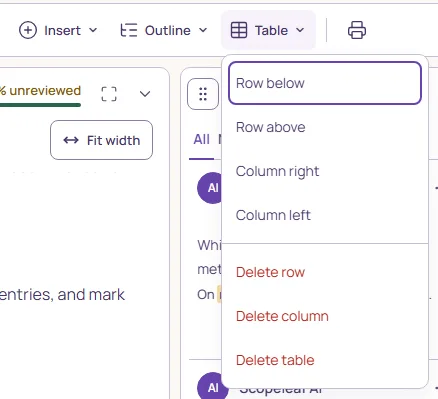
Table inserts three columns and three rows with a header row. Code block turns the current block into monospace text that keeps its spacing. Divider draws a rule between two blocks. Checklist is a list of items with a checkbox, ticked by anyone in the document. While the cursor is in a table, a Table menu joins Insert and Outline with rows, columns and delete; see Lists and tables.
Review changes: the panel’s menu
Each row in Review changes has its own Approve and Reject for the host and the operator; everyone else reads Waiting for the host or the operator there, and the i beside the panel’s title says who decides what. The three dots in the panel’s header hold what acts on all of them at once. Where Review changes has no column and its rows are pills on their paragraphs, the same menu is at the end of the document’s view row.
- Approve all, Reject all
- The host’s or the operator’s: one decision for every proposal the open tab shows, top to bottom; the menu says how many. Comments stay open.
- Show before & after
- Draws each proposal inline as a red deletion and a green insertion. Off, the document shows only the current text.
The More menu
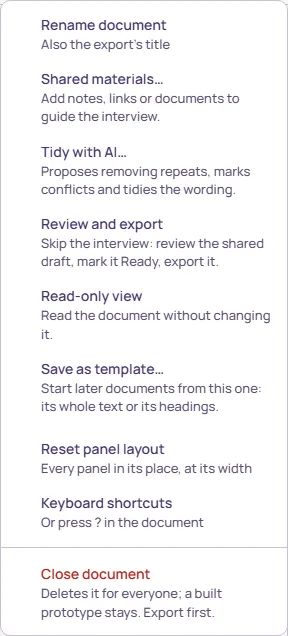
- Rename document
- Changes the document’s name, which is also the export’s title.
- Shared materials…
- Files and links the team wants at hand in this document.
- Review and export
- Skips the interview and moves the draft to Refined, where the team marks the ticket ready. Offered to the host or the operator while the document is a Draft.
- Read-only view
- Locks the document for you. Every editing and review tool greys out and says why; you can still read, move between suggestions and export.
- Save as template…
- The host’s. Starts later documents from this one, its whole text or only its headings; the template is kept in your account (Templates).
- Reset panel layout
- Puts every panel back in its place and at its own width. Offered where the panels can move.
- Keyboard shortcuts
- The same table as Keyboard shortcuts; ? opens it from anywhere outside a text field.
- Close document
- Last, under a rule. Ends access and stops the AI, and keeps everything; the host reopens it from Documents, in Closed. Delete document, the item under it, removes it for everyone, for good. Export first.
Small screens
Below a wide screen the panels give way in order: Sections folds to its rail, then opens over the document as a drawer, which a jump to a section closes; Review hands its cards to small “N suggestions” pills on their paragraphs; Activity opens over the document as a drawer too. Escape closes a drawer. On a phone or a tablet the three icons at the end of the document header show and hide them: Sections, the suggestions and Activity. A control the width cannot honour (the folded outline’s open button) is disabled and says so in its tooltip. The keyboard reaches every tool: Tab into Tools, then the arrow keys move along the strip.
Clicking a tool never takes the cursor out of the document. Pick a tool, keep typing.