Editor
Paste and import
Most drafts start as a paste. The editor keeps what a ticket can carry, turns Markdown into real blocks, and says so whenever it had to leave something out.
From Confluence, Word, Google Docs, Notion
Mod+V pastes with structure: headings, paragraphs, bold and italic, lists, tables and web links come through as the same blocks and marks the editor has. Colours, fonts, sizes and highlights do not, because the document cannot hold them.
Mod+Shift+V pastes as plain text: one paragraph per line, nothing interpreted. Use it for a snippet that must stay literal.
Markdown
Text that looks like Markdown is read as Markdown. Paste a chat message or a file with # headings, - lists, > quotes, fenced code or a | table and you get headings, lists, quotes, code blocks and tables, not the punctuation.
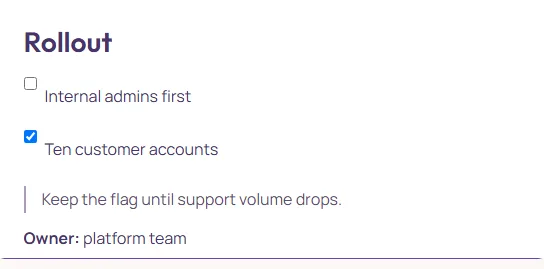
The rule is the block syntax at the start of a line. Plain prose with a stray asterisk is left alone, and Mod+Shift+V always keeps the characters as typed.
Tables from other tools
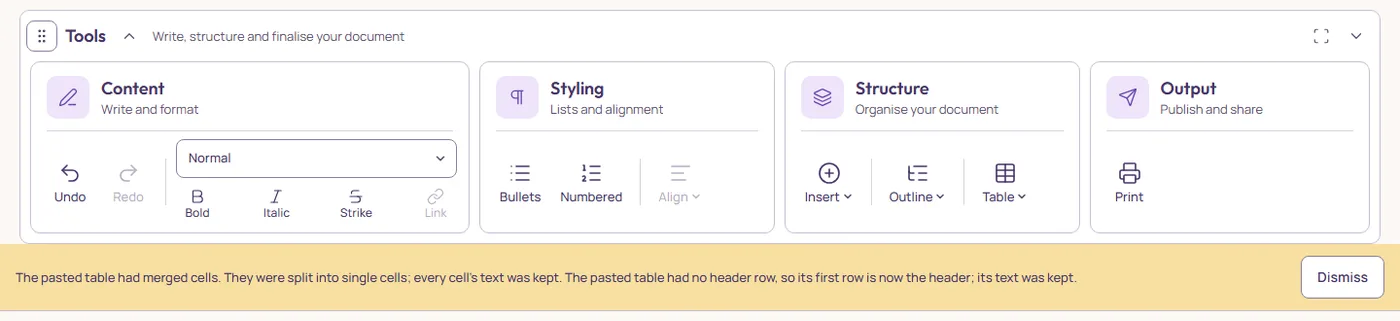
A pasted table becomes an editor table with a header row. Two things are fixed on the way in, and each one is reported in a bar under Tools that you can read and dismiss:
- Merged cells
- A cell spanning columns or rows is split into single cells; the text stays in the first, the others are empty. Every row ends up the same length.
- No header row
- The first row is made the header. Its text is kept; it simply becomes the row Markdown needs at the top.
Images and files
The document holds text, tables and code. An image inside a paste, a screenshot on the clipboard, or a file dropped on the document is left out and the rest is pasted; the bar says so, once per paste.
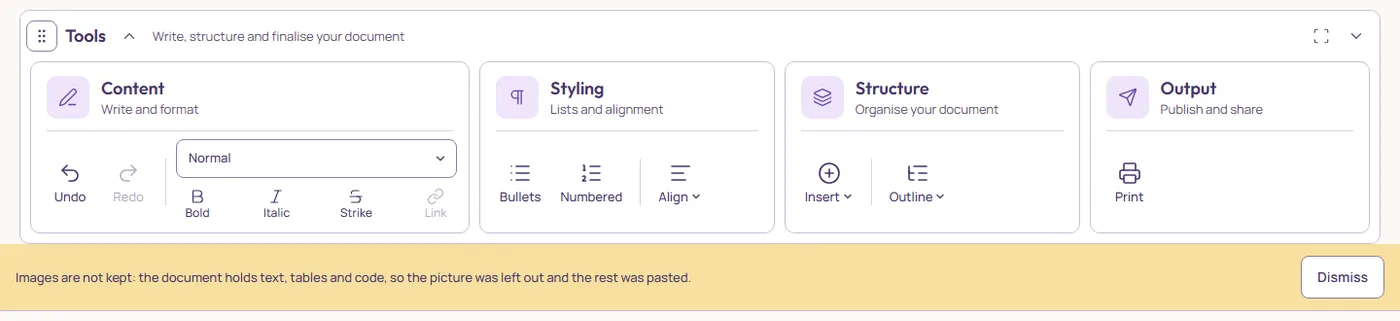
A picture stays where the team can already see it (the design tool, the wiki, a shared drive) and its address goes into shared materials as a link, or into the text as a link. Materials take text and links, not image files.
Links in a paste
Web (http, https) and email links are kept. A link that points nowhere from outside its source, such as a page-relative Confluence address, arrives as plain text with the words intact. See Links.
A Word file
Upload on Documents and on a project takes Word files (.docx) as well as Markdown, up to twelve files at a time. Your browser converts the file: the file stays on your computer, and only its text, with its tracked changes and comments, reaches Scopeleaf as the new document.
Headings, paragraphs, bold, italic, lists, tables, and web and email links are kept. A merged table cell is split, with its text in the first cell. Footnotes become a list under Notes at the end. Pictures, headers, footers and the page layout are left out, and the notice after the upload says how many pictures.
Tracked changes and comments in the file arrive in Review changes as suggestions and comments, each signed with the name Word had for its author. The document is the text before those changes, so the team decides each one, as with any suggestion.
A Word file can be up to 25 MB, with up to 100,000 characters of text. An older .doc file or a password-protected one is refused, with the steps to save it again in Word.
A ticket from Jira
Once Jira is connected under Settings → Integrations, Import from Jira appears beside Upload on Documents and on a project, and a key field appears in Import a ticket on Home. Paste the ticket's key, such as SHOP-514, or its link from your connected Jira site: the ticket page, or a board or backlog with the ticket open. Scopeleaf reads that one ticket with your own Jira permissions and never changes anything in Jira.
You then pick its fields as with a Jira export file: the usual fields start ticked, an import template you saved ticks its own, and the preview shows the Draft. Import makes it a document; from Home it opens at once.
A link from another Jira site is refused, because the same key there is a different ticket. If Jira stops accepting the connection, for example after you remove Scopeleaf from your Atlassian account, the button reads Reconnect Jira. Without a connection, export the tickets from Jira as CSV or JSON and use Upload.
Your company runs its own Jira (Jira Server or Data Center)? Under Settings → Integrations → Jira Server / Data Center, paste its address and a personal access token. You create the token in that Jira: your profile picture → Profile → Personal Access Tokens → Create token; give it an expiry date. Scopeleaf checks the token with Jira, keeps it encrypted, and reads with your own permissions. With Jira Cloud connected as well, you pick which Jira a key is read from; a link is read from its own. If your company's Jira opens only inside its network or over VPN, Scopeleaf cannot reach it: export the ticket as a file instead.
We replace people's names from Jira with Person 1, Person 2… before the text is saved. That holds for a ticket read from Jira and for an export file alike: a name from Jira's people fields, such as the reporter, the assignee, a comment's author or an @mention, is replaced wherever it appears in full, the same person always with the same number, and the preview says how many people were renamed. A name that appears only in free text, in no people field, cannot be found reliably without AI and may stay, as may a first name on its own, a name written in different capitals than Jira spells it, or a name in a CSV export's custom user field, which the CSV does not mark as a person.